How to make the Java secure connection for Redis

This is a step-by-step instruction and it uses Jedis client driver to show the sample.

  1. This requires the certificate to the Redis database instance.
  2. Get the “certificate” string, see below as an example.
"certificate": { "LS0tLS1CRUdJTiBDRVJUSUZJQ0FURS0tLS0tCk1JSUREekNDQWZlZ0F3SUJBZ0lKQU5FSDU4..."
}
  1. Copy, decode, and save the certificate to a file.
 echo "LS0tLS1CRUdJTiBDRVJUSUZJQ0FURS0tLS0tCk1JSUREekNDQWZlZ0F3SUJBZ0lKQU5FSDU4..." | base64 -D > cert.crt 

  1. Copy the file cert.crt to the $JAVA_HOME/jre/lib/security .
  2. Import the certificate to the trusted root certificate of the JAVA (usually called “cacerts”) by using keytool import command. For example,
sudo keytool -importcert -keystore /Library/Java/JavaVirtualMachines/jdk1.8.0_60.jdk/Contents/Home/jre/lib/security/cacerts
 -storepass changeit -file cert.crt -alias "redis_key" 

  1. Write the Java program. There are several Java clients for Redis – https://redislabs.com/lp/redis-java/ I use Jedis(jedis-3.0.0.jar) as an example as below. Please change the uri_string to your database for redis instance uri_string.
import java.net.URI;
    
import redis.clients.jedis.Jedis;
    
public class redis_jedis_sample {

      public static void main(String[] args) throws Exception {
            String redis_uri = "rediss://admin:***@47131ae0-6508-4b8b-939d-6eaaf5f36abc.databases.appdomain.cloud:31503/0";
            Jedis jedis = new Jedis(URI.create(redis_uri));
            jedis.connect();
            System.out.println(jedis.ping());
            }
} 

If the java application runs with “PONG” returned, then the connection is successful.

MongoDB not master Error

Background – not master error is returned when writing to secondary mongod. If your application uses connection string with replset it will be good to avoid connecting directly to one member.

As replica set in MongoDB is a group of mongod processes that provide redundancy and high availability. The members of a replica set include primary and secondaries. Although clients cannot write data to secondaries, clients can read data from secondary members. More info are at MongoDB doc.

There are not master error returned if send write operations to secondaries or send read operations to secondaries in non SlaveOK mode.. Different clients have slightly different behaviors, PyMongo and the mongo Shell are covered below. I use some Cloud MongoDB instance, so there is 2497b4e9-57b8-4a68-97f5-c35719ab64e5-1.b2b5a92ee2df47d58bad0fa448c15585.databases.cloud

PyMongo

Write

Write against secondaries would return not master error. Below is an example to connect to MongoDB instance secondary mongod and do write operation.

import ssl
import pprint
from pymongo import MongoClient

myclient = MongoClient('mongodb://username:pwd@2497b4e9-57b8-4a68-97f5-c35719ab64e5-1.b2b5a92ee2df47d58bad0fa448c15585.databases.cloud:32482/mydb1?authSource=admin',ssl=True, ssl_cert_reqs=ssl.CERT_REQUIRED, ssl_ca_certs='797cf5ae-4027-11e9-a020-42025ffb08c8')
mydb = myclient.get_database()
print(mydb.name)
mycol = mydb["book"]
print(mycol.name)
mydict = {"author": "SAN MAO"}
x = mycol.insert_one(mydict).inserted_id
print(x)

Below is the output. The insert is failed, pymongo.errors.NotMasterError: not master error is returned.

mydb1
book
Traceback (most recent call last):
  File "pymongo-test-2.py", line 15, in <module>
    x = mycol.insert_one(mydict).inserted_id
  File "/usr/local/lib/python2.7/site-packages/pymongo/collection.py", line 693, in insert_one
    session=session),
  File "/usr/local/lib/python2.7/site-packages/pymongo/collection.py", line 607, in _insert
    bypass_doc_val, session)
  File "/usr/local/lib/python2.7/site-packages/pymongo/collection.py", line 595, in _insert_one
    acknowledged, _insert_command, session)
  File "/usr/local/lib/python2.7/site-packages/pymongo/mongo_client.py", line 1248, in _retryable_write
    return self._retry_with_session(retryable, func, s, None)
  File "/usr/local/lib/python2.7/site-packages/pymongo/mongo_client.py", line 1201, in _retry_with_session
    return func(session, sock_info, retryable)
  File "/usr/local/lib/python2.7/site-packages/pymongo/collection.py", line 590, in _insert_command
    retryable_write=retryable_write)
  File "/usr/local/lib/python2.7/site-packages/pymongo/pool.py", line 584, in command
    self._raise_connection_failure(error)
  File "/usr/local/lib/python2.7/site-packages/pymongo/pool.py", line 745, in _raise_connection_failure
    raise error
pymongo.errors.NotMasterError: not master

If change MongoClient to connect with the replicaSet or primary mongod, the write will be successful.

Below is replicaSet MongoClient sample, there is replicaSet=replset

myclient = MongoClient('mongodb://username:pwd@2497b4e9-57b8-4a68-97f5-c35719ab64e5-0.b2b5a92ee2df47d58bad0fa448c15585.databases.cloud:32482,2497b4e9-57b8-4a68-97f5-c35719ab64e5-1.b2b5a92ee2df47d58bad0fa448c15585.databases.cloud:32482/mydb1?authSource=admin&replicaSet=replset',ssl=True, ssl_cert_reqs=ssl.CERT_REQUIRED, ssl_ca_certs='797cf5ae-4027-11e9-a020-42025ffb08c8')

Read

pymongo uses read_preferences to define the read preference modes supported by PyMongo.

A read preference is used in three cases:

  • MongoClient connected to a single mongod.
  • MongoClient initialized with the replicaSet option.
  • MongoClient connected to a mongos, with a sharded cluster of replica sets.

Different setting have different read from primary or secondary, details are in the doc.

The mongo Shell

If connect to replset, it will run at primary and read & write are both work fine.

mongo -u username -p pwd --ssl --sslCAFile 797cf5ae-4027-11e9-a020-42025ffb08c8 --authenticationDatabase admin --host replset/2497b4e9-57b8-4a68-97f5-c35719ab64e5-0.b2b5a92ee2df47d58bad0fa448c15585.databases.cloud:32482,2497b4e9-57b8-4a68-97f5-c35719ab64e5-1.b2b5a92ee2df47d58bad0fa448c15585.databases.cloud:32482
replset:PRIMARY> use mydb1
switched to db mydb1
replset:PRIMARY> db.book.find()
{ "_id" : ObjectId("5cac409e77247ca5363338cf"), "author" : "SAN MAO" }
replset:PRIMARY> db.book.insert({"author":"SAN MAO"})
WriteResult({ "nInserted" : 1 })
replset:PRIMARY> db.book.find()
{ "_id" : ObjectId("5cac409e77247ca5363338cf"), "author" : "SAN MAO" }
{ "_id" : ObjectId("5cac40f1219e493fcc964573"), "author" : "SAN MAO" }

If connect to secondary, it requires setSlaveOk() to read from secondary, write is not allowed obviously. Please note that at MongoDB 4.0, the readPref() method for more fine-grained control over read preference in the mongo shell, details are at doc.

mongo -u username -p pwd --ssl --sslCAFile 797cf5ae-4027-11e9-a020-42025ffb08c8 --authenticationDatabase admin --host 2497b4e9-57b8-4a68-97f5-c35719ab64e5-1.b2b5a92ee2df47d58bad0fa448c15585.databases.cloud:32482
MongoDB shell version v4.0.0
connecting to: mongodb://2497b4e9-57b8-4a68-97f5-c35719ab64e5-1.b2b5a92ee2df47d58bad0fa448c15585.databases.cloud:32482/
MongoDB server version: 4.0.6
replset:SECONDARY> use mydb1
switched to db mydb1
replset:SECONDARY> db.book.find()
Error: error: {
	"operationTime" : Timestamp(1554792804, 1),
	"ok" : 0,
	"errmsg" : "not master and slaveOk=false",
	"code" : 13435,
	"codeName" : "NotMasterNoSlaveOk",
	"$clusterTime" : {
		"clusterTime" : Timestamp(1554792804, 1),
		"signature" : {
			"hash" : BinData(0,"F4GTMkvVzRuWPtjJ3hnCZYsbXMU="),
			"keyId" : NumberLong("6674800866463055873")
		}
	}
}
replset:SECONDARY> db.getMongo().setSlaveOk()
replset:SECONDARY> db.book.find()
{ "_id" : ObjectId("5cac409e77247ca5363338cf"), "author" : "SAN MAO" }
{ "_id" : ObjectId("5cac40f1219e493fcc964573"), "author" : "SAN MAO" }
replset:SECONDARY> db.book.insert({"author":"SAN MAO"})
WriteCommandError({
	"operationTime" : Timestamp(1554792824, 1),
	"ok" : 0,
	"errmsg" : "not master",
	"code" : 10107,
	"codeName" : "NotMaster",
	"$clusterTime" : {
		"clusterTime" : Timestamp(1554792824, 1),
		"signature" : {
			"hash" : BinData(0,"dWbM9um3qgsbauHeUCf00E8kj7g="),
			"keyId" : NumberLong("6674800866463055873")
		}
	}
})

Postgresql max connections

There are three level max connections at postgresql, include server level max connections, per databases and per user role max connections.

1). Server max connections.

SHOW max_connections;
 max_connections
-----------------
 100
(1 row)

2). database max connections.

Default is -1 which means there is no max connections limit to the database, but it could be set during create database and alter database.

ALTER DATABASE testdb CONNECTION LIMIT 10;

Below shows how to check the max connections per database, e.g. it’s 10 for testdb

SELECT datname, datconnlimit FROM pg_database;
  datname  | datconnlimit
-----------+--------------
 postgres  |           -1
 compose   |           -1
 template1 |           -1
 template0 |           -1
 testdb    |           10
(5 rows)

3). User Role max connections.

Default is -1 which means there is no max connections limit for the user role. However, it could be set during create user or alter user.

ALTER USER testuser WITH CONNECTION LIMIT 2;

Below shows how to check the max connections per user role, e.g. it’s 2 for testuser

SELECT rolname, rolconnlimit FROM pg_roles;
       rolname       | rolconnlimit
---------------------+--------------
 pg_signal_backend   |           -1
 admin               |           -1
 user-binder         |           -1
 testuser            |            2

Access kubernetes dashboard

As documented https://kubernetes.io/docs/tasks/access-application-cluster/web-ui-dashboard/ the dashboard needs to be open at localhost. Then how about open the web UI from other boxes? Below are some tricks.

Step 1). get yaml file.

wget https://raw.githubusercontent.com/kubernetes/dashboard/v1.10.1/src/deploy/recommended/kubernetes-dashboard.yaml

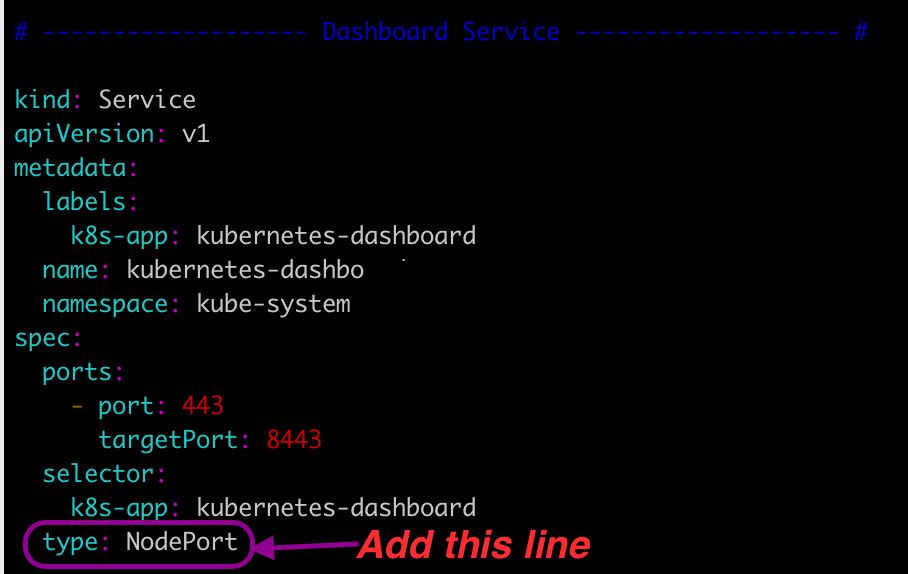
Step 2). Add type: NodePort to Dashboard Service

Apply the kubernetes-dashboard.yaml

kubectl apply -f kubernetes-dashboard.yaml

Step 3). Get the port

port=$(kubectl get svc kubernetes-dashboard -n kube-system -o jsonpath={.spec.ports[0].nodePort});echo $port

30450 is returned at my case. Then I could use the master node IP and the port to open the dashboard. https://9.111.139.68:30450

Step 4). Get the token.

kubectl -n kube-system describe secret $(kubectl -n kube-system get secret | awk '/^deployment-controller-token-/{print $1}') | awk '$1=="token:"{print $2}'

Then enter the token, you will see the dashboard, enjoy!

Use kubeadm to build up my first k8s cluster

Now everywhere is kubernetes, below is my practice of using kubeadmhttps://kubernetes.io/docs/reference/setup-tools/kubeadm/kubeadm/ to build up my first k8s cluster and deployment, time to go!

Step 1). Provision two virtual machines.

I use Ubuntu-1604 and each server has 4CPU, 8.0GMem, 50GDisk.

cat /proc/version Linux version 4.4.0-148-generic (buildd@lgw01-amd64-031) (gcc version 5.4.0 20160609 (Ubuntu 5.4.0-6ubuntu1~16.04.10) ) #174-Ubuntu SMP Tue May 7 12:20:14 UTC 2019

Step 2). Install kubelet kubeadm kubectland docker at both nodes.

I’m not at US and I use below mirror to install it quickly. ssh the server first. Then run below.

apt-get update && apt-get install -y apt-transport-https
curl https://mirrors.aliyun.com/kubernetes/apt/doc/apt-key.gpg | apt-key add - 
cat <<EOF >/etc/apt/sources.list.d/kubernetes.list
deb https://mirrors.aliyun.com/kubernetes/apt/ kubernetes-xenial main
EOF  
apt-get update
apt-get install -y kubelet kubeadm kubectl

apt install docker.io

Add DNS server to /etc/resolv.conf

nameserver 8.8.8.8
nameserver 8.8.4.4

Step 3). Setup master node.

ssh to the master node. Run kubeadm init Below messages show it is successful.

Your Kubernetes control-plane has initialized successfully!

To start using your cluster, you need to run the following as a regular user:

  mkdir -p $HOME/.kube
  sudo cp -i /etc/kubernetes/admin.conf $HOME/.kube/config
  sudo chown $(id -u):$(id -g) $HOME/.kube/config

You should now deploy a pod network to the cluster.
Run "kubectl apply -f [podnetwork].yaml" with one of the options listed at:
  https://kubernetes.io/docs/concepts/cluster-administration/addons/

Then you can join any number of worker nodes by running the following on each as root:

kubeadm join 10.0.13.122:6443 --token bm31hs.xxx \
    --discovery-token-ca-cert-hash sha256:xxx

Add private IP and host into /etc/hosts e.g. 10.0.13.122 kvm-019646

Run below.

 mkdir -p $HOME/.kube
 sudo cp -i /etc/kubernetes/admin.conf $HOME/.kube/config
 sudo chown $(id -u):$(id -g) $HOME/.kube/config

Step 4). Setup worker node.

Add private IP and host into /etc/hosts e.g. 10.0.11.147 kvm-019647

ssh to the worker node. Run the kubeadm join

kubeadm join 10.0.13.122:6443 --token bm31hs.xxx \
    --discovery-token-ca-cert-hash sha256:xxx

Cool, I get below messages.

This node has joined the cluster:
* Certificate signing request was sent to apiserver and a response was received.
* The Kubelet was informed of the new secure connection details.

Run 'kubectl get nodes' on the control-plane to see this node join the cluster.

Step 5). Check at master node.

kubectl get nodes
NAME         STATUS     ROLES    AGE   VERSION
kvm-019646   NotReady   master   18m   v1.15.0
kvm-019647   NotReady   <none>   9s    v1.15.0

Install calico or weave to enable network and network policies at Kubernetes clusters.

kubectl apply -f https://git.io/weave-kube-1.6

Then you could get Ready status.

kubectl get nodes
NAME         STATUS   ROLES    AGE   VERSION
kvm-019646   Ready    master   40m   v1.15.0
kvm-019647   Ready    <none>   21m   v1.15.0
Bravo, the k8s cluster is setup!

Step 6). Try the deployment.

Deploy below nginx deployment. Save below into nginx.yaml

apiVersion: apps/v1
kind: Deployment
metadata:
  name: nginx-deployment
spec:
  selector:
    matchLabels:
      app: nginx
  replicas: 2
  template:
    metadata:
      labels:
        app: nginx
    spec:
      containers:
      - name: nginx
        image: nginx:1.8
        ports:
        - containerPort: 80

Apply the nginx.yaml

kubectl apply -f nginx.yaml
deployment.apps/nginx-deployment created

To access it from other boxes, deploy a service with NodePort Save below into a yaml file and apply it.

apiVersion: v1
kind: Service
metadata:
  name: mysvc
  namespace: default
spec:
  ports:
  - port: 80
    protocol: TCP
  selector:
    app: nginx
  type: NodePort

Get the node port.

port=$(kubectl get svc mysvc -o jsonpath={.spec.ports[0].nodePort})
echo $port

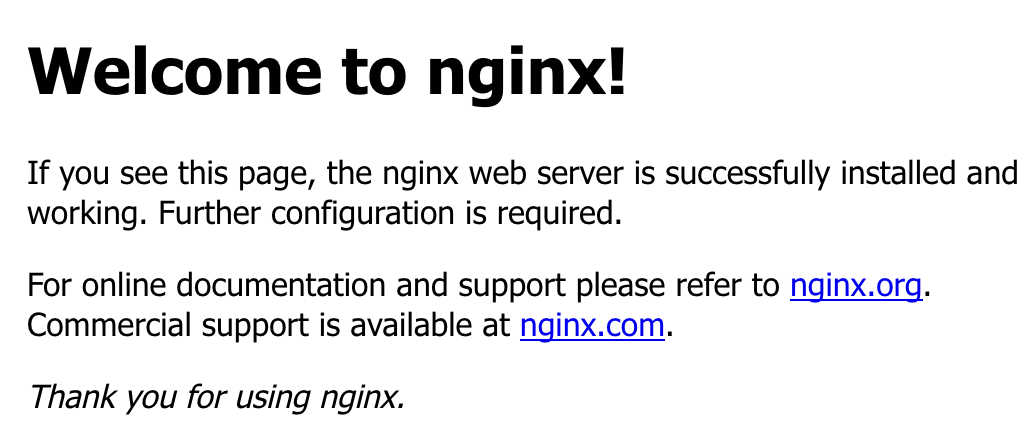
At my case, 31559 is returned. So I could use master node IP and the port to access it. Open http://9.111.139.68:31559/ from web browser. I will see.

Run kubectl get pods --all-namespaces could see all pods.

Cool, I have deployed the k8s cluster and also a nginx deployment, well done!