Access kubernetes dashboard

As documented https://kubernetes.io/docs/tasks/access-application-cluster/web-ui-dashboard/ the dashboard needs to be open at localhost. Then how about open the web UI from other boxes? Below are some tricks.

Step 1). get yaml file.

wget https://raw.githubusercontent.com/kubernetes/dashboard/v1.10.1/src/deploy/recommended/kubernetes-dashboard.yaml

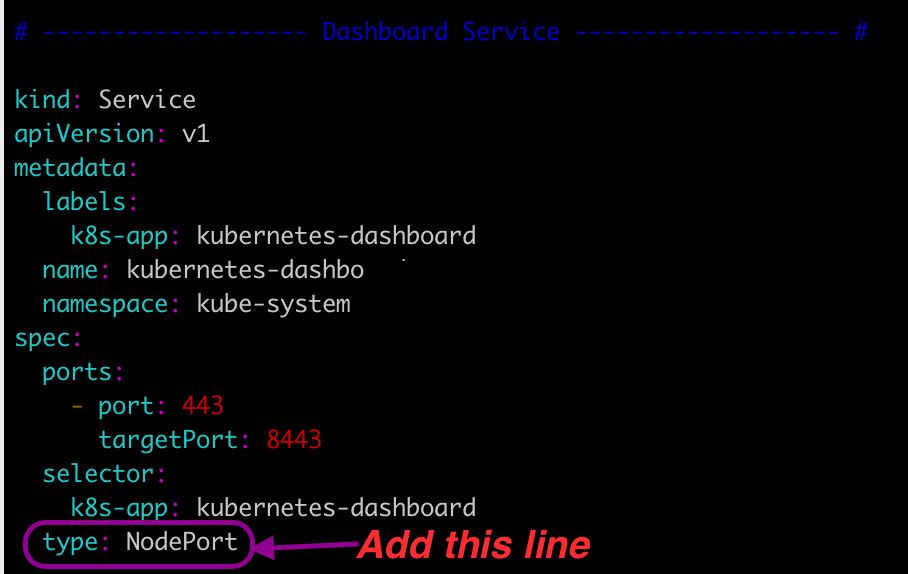
Step 2). Add type: NodePort to Dashboard Service

Apply the kubernetes-dashboard.yaml

kubectl apply -f kubernetes-dashboard.yaml

Step 3). Get the port

port=$(kubectl get svc kubernetes-dashboard -n kube-system -o jsonpath={.spec.ports[0].nodePort});echo $port

30450 is returned at my case. Then I could use the master node IP and the port to open the dashboard. https://9.111.139.68:30450

Step 4). Get the token.

kubectl -n kube-system describe secret $(kubectl -n kube-system get secret | awk '/^deployment-controller-token-/{print $1}') | awk '$1=="token:"{print $2}'

Then enter the token, you will see the dashboard, enjoy!

Use kubeadm to build up my first k8s cluster

Now everywhere is kubernetes, below is my practice of using kubeadmhttps://kubernetes.io/docs/reference/setup-tools/kubeadm/kubeadm/ to build up my first k8s cluster and deployment, time to go!

Step 1). Provision two virtual machines.

I use Ubuntu-1604 and each server has 4CPU, 8.0GMem, 50GDisk.

cat /proc/version Linux version 4.4.0-148-generic (buildd@lgw01-amd64-031) (gcc version 5.4.0 20160609 (Ubuntu 5.4.0-6ubuntu1~16.04.10) ) #174-Ubuntu SMP Tue May 7 12:20:14 UTC 2019

Step 2). Install kubelet kubeadm kubectland docker at both nodes.

I’m not at US and I use below mirror to install it quickly. ssh the server first. Then run below.

apt-get update && apt-get install -y apt-transport-https
curl https://mirrors.aliyun.com/kubernetes/apt/doc/apt-key.gpg | apt-key add - 
cat <<EOF >/etc/apt/sources.list.d/kubernetes.list
deb https://mirrors.aliyun.com/kubernetes/apt/ kubernetes-xenial main
EOF  
apt-get update
apt-get install -y kubelet kubeadm kubectl

apt install docker.io

Add DNS server to /etc/resolv.conf

nameserver 8.8.8.8
nameserver 8.8.4.4

Step 3). Setup master node.

ssh to the master node. Run kubeadm init Below messages show it is successful.

Your Kubernetes control-plane has initialized successfully!

To start using your cluster, you need to run the following as a regular user:

  mkdir -p $HOME/.kube
  sudo cp -i /etc/kubernetes/admin.conf $HOME/.kube/config
  sudo chown $(id -u):$(id -g) $HOME/.kube/config

You should now deploy a pod network to the cluster.
Run "kubectl apply -f [podnetwork].yaml" with one of the options listed at:
  https://kubernetes.io/docs/concepts/cluster-administration/addons/

Then you can join any number of worker nodes by running the following on each as root:

kubeadm join 10.0.13.122:6443 --token bm31hs.xxx \
    --discovery-token-ca-cert-hash sha256:xxx

Add private IP and host into /etc/hosts e.g. 10.0.13.122 kvm-019646

Run below.

 mkdir -p $HOME/.kube
 sudo cp -i /etc/kubernetes/admin.conf $HOME/.kube/config
 sudo chown $(id -u):$(id -g) $HOME/.kube/config

Step 4). Setup worker node.

Add private IP and host into /etc/hosts e.g. 10.0.11.147 kvm-019647

ssh to the worker node. Run the kubeadm join

kubeadm join 10.0.13.122:6443 --token bm31hs.xxx \
    --discovery-token-ca-cert-hash sha256:xxx

Cool, I get below messages.

This node has joined the cluster:
* Certificate signing request was sent to apiserver and a response was received.
* The Kubelet was informed of the new secure connection details.

Run 'kubectl get nodes' on the control-plane to see this node join the cluster.

Step 5). Check at master node.

kubectl get nodes
NAME         STATUS     ROLES    AGE   VERSION
kvm-019646   NotReady   master   18m   v1.15.0
kvm-019647   NotReady   <none>   9s    v1.15.0

Install calico or weave to enable network and network policies at Kubernetes clusters.

kubectl apply -f https://git.io/weave-kube-1.6

Then you could get Ready status.

kubectl get nodes
NAME         STATUS   ROLES    AGE   VERSION
kvm-019646   Ready    master   40m   v1.15.0
kvm-019647   Ready    <none>   21m   v1.15.0
Bravo, the k8s cluster is setup!

Step 6). Try the deployment.

Deploy below nginx deployment. Save below into nginx.yaml

apiVersion: apps/v1
kind: Deployment
metadata:
  name: nginx-deployment
spec:
  selector:
    matchLabels:
      app: nginx
  replicas: 2
  template:
    metadata:
      labels:
        app: nginx
    spec:
      containers:
      - name: nginx
        image: nginx:1.8
        ports:
        - containerPort: 80

Apply the nginx.yaml

kubectl apply -f nginx.yaml
deployment.apps/nginx-deployment created

To access it from other boxes, deploy a service with NodePort Save below into a yaml file and apply it.

apiVersion: v1
kind: Service
metadata:
  name: mysvc
  namespace: default
spec:
  ports:
  - port: 80
    protocol: TCP
  selector:
    app: nginx
  type: NodePort

Get the node port.

port=$(kubectl get svc mysvc -o jsonpath={.spec.ports[0].nodePort})
echo $port

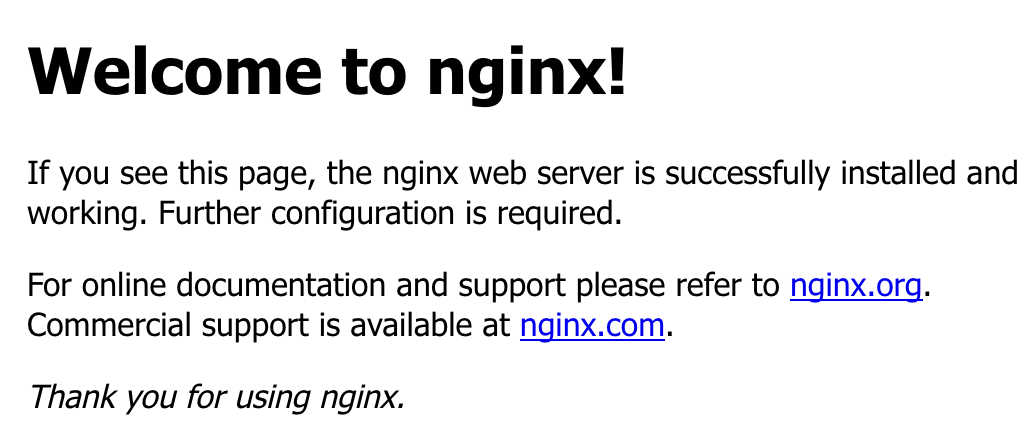
At my case, 31559 is returned. So I could use master node IP and the port to access it. Open http://9.111.139.68:31559/ from web browser. I will see.

Run kubectl get pods --all-namespaces could see all pods.

Cool, I have deployed the k8s cluster and also a nginx deployment, well done!